Outlook to Encompass Email Integration.
Move an email and its attachments from Microsoft Outlook into the Encompass loan file, without leaving Outlook.
Move an email and its attachments from Microsoft Outlook into the Encompass loan file, without leaving Outlook.
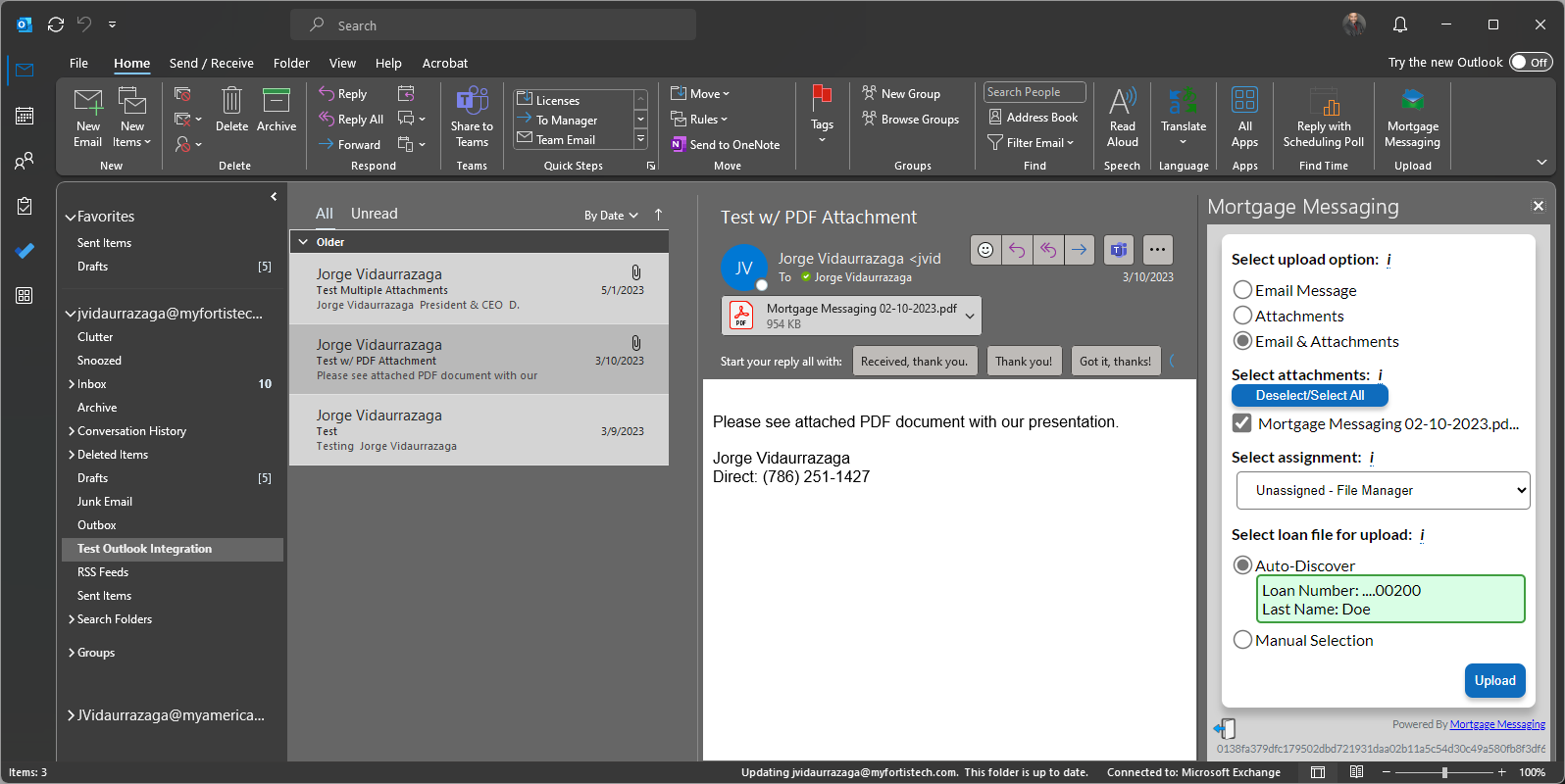
The traditional route out of Outlook runs through the desktop: save the attachment, switch to Encompass, find the loan, open the eFolder, browse back to the file, upload, delete the copy. The add-in removes every step of that. Open the email, pick what to send, confirm the loan, upload — the message converts to PDF automatically on the way in.
Certified and published in the Microsoft Outlook add-in store, deployed to your mailboxes by your own Microsoft 365 administrator.
The add-in recognises the user's Outlook primary address and emails a registration key to it — once. After validation it opens straight to the upload screen every time.
The add-in looks up the loan automatically from the sender's email address and shows the loan number and borrower last name to confirm before anything is sent.
Search by loan number, borrower last name, or both. Results list the loan number, the date the loan was started, and the borrower's last name.
Send the message on its own, the attachments on their own, or both together. Eligible attachments are pre-selected with a checkbox beside each one.
Choose where the upload is filed. Your organization controls which eFolder documents appear in the list; the default places the item in the loan's File Manager.
If the loan is open in Encompass, the upload queues itself and keeps attempting the import for 72 hours as soon as the loan frees up. Users are notified by email if it cannot complete.
Loan numbers display only their last five digits throughout the add-in, in both Auto-Discover and search results.
Every upload appears on the loan's Communications Log as an Email entry with a link to open the resulting PDF — audited like every other communication.
Significantly reduces the time a user spends moving material from Outlook to Encompass — by over 1,600%.
Built for the whole operations team: originators, assistants, processors, underwriters, closers, funders and shippers.
PDF, Word (DOC/DOCX), TIFF, JPEG/JPG, Text/Plain, HTML, EMF and XPS, up to approximately 19.5 MB per attachment.
Open the email in Outlook and launch the Mortgage Messaging add-in. It finds the Encompass loan from the sender's email address, or you can search by loan number or borrower last name. Choose the email, its attachments or both, select the eFolder document and upload. The email is converted to PDF automatically.
No. Nothing is ever saved to the user's desktop. The add-in sends the email and attachments straight to the loan's eFolder, which is why it is over 1,600% faster than the traditional method.
The upload queues itself and keeps retrying for 72 hours, completing as soon as the loan is free. If it cannot complete, the user is notified by email.
Mortgage Messaging is a certified add-in published in Microsoft AppSource. Your Microsoft 365 administrator deploys it to your mailboxes, and each user registers once with a key sent to their Outlook address.
PDF, Word (DOC and DOCX), TIFF, JPEG, plain text, HTML, EMF and XPS files, up to approximately 19.5 MB per attachment.

COMMUNICATE DECISIVELY, VERIFY SIMPLY & PROCESS SEAMLESSLY®
Secure texting, phone calls and Outlook email for ICE Encompass — built for mortgage lenders, banks and credit unions.